Best Video Editing Software for Beginners in 2026 (Easy Picks Compared)
Author: Yang Dan · Publisher: DirHunt AI (dirhuntai.com) · Desk: Software Reviews
Disclosure: No affiliate links. Every product link goes to an official vendor page.
Review type: Docs-verified against official product/pricing/help pages as of October 20, 2026 (Asia/Shanghai). Hands-on lab is limited this pass (official product UI screenshots on file; timed export benchmarks not run).
Last updated: October 20, 2026 (Asia/Shanghai)
How this differs from our free roundup: Looking only for no-cost masters and watermark rules? Read Best Free Video Editing Software in 2026. This guide answers a different question: which editor gets a first-timer to a finished clip—templates, learning curve, and when free still stamps a logo.
Looking for the best video editing software for beginners in 2026? You do not need Premiere Pro on day one. You need a tool that explains itself: templates or guided edits, an honest free tier (or a clear price), and an export that does not surprise you with a watermark.
We compared eight beginner-friendly editors against official product and pricing pages—CapCut, iMovie, Clipchamp, Canva Video, Filmora, Adobe Premiere Elements, Descript, and DaVinci Resolve—focusing on learning curve, templates, watermarks, free-tier usability, and platform fit for US creators.
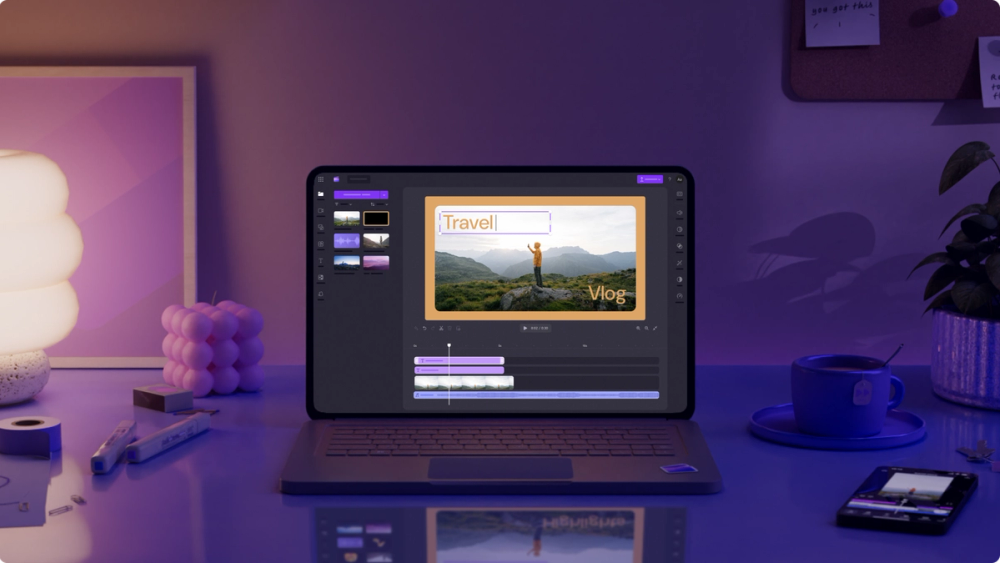
Caption: Hero — Microsoft Clipchamp editing UI on Windows (official product marketing still). Docs-verified free 1080p / watermark-free limits as of Oct 20, 2026 (Asia/Shanghai).
How to choose in 60 seconds
- Shorts / Reels / TikTok templates → CapCut (freemium; privacy caveats). - Already on a Mac / iPhone → iMovie (free). - Windows, zero drama → Clipchamp (free watermark-free 1080p). - Already live in Canva → Canva Video. - Want an easy paid desktop timeline → Filmora (free exports are watermarked). - Want Adobe Guided Edits without Premiere Pro → Premiere Elements. - Talking-head / podcast video → Descript (edit the transcript). - Willing to learn for a free pro ceiling → DaVinci Resolve (steep; not the easiest).
Quick picks
| Need | Pick |
|---|---|
| Best overall for beginners | CapCut |
| Best free on Apple | iMovie |
| Best free on Windows | Clipchamp |
| Best design-first | Canva Video |
| Best easy paid desktop | Filmora |
| Best guided Adobe path | Premiere Elements |
| Best for talking-head | Descript |
| Best free to grow into | DaVinci Resolve |
Table of contents
- How to choose in 60 seconds
- How we evaluated
- Beginner comparison table
-
- CapCut
-
- iMovie
-
- Clipchamp
-
- Canva Video
-
- Filmora
-
- Adobe Premiere Elements
-
- Descript
-
- DaVinci Resolve
- Free vs freemium vs paid for beginners
- Which beginner editor should you choose?
- Also considered / not on the main list
- FAQ
- Related reading
- Methodology & update notes
How we evaluated
We ranked tools for people searching best video editing software for beginners in the US—students, family vloggers, small-business social posters, and first-time YouTubers who want a finished clip this weekend, not a colorist workstation.
Criteria
- Learning curve — Time from open to a shareable cut.
- Templates / guided edits — Does the app help structure the first project?
- Watermark honesty — Does free export stamp a logo on your own media?
- Free-tier usability — Can you publish without paying on day one?
- Platform fit — Windows, Mac, mobile, browser.
- Upgrade path — Clear paid tier when you outgrow free—without forcing a full relearn.
Proof language: For each editor we opened the current official product page, pricing page, and (where relevant) help docs as of October 20, 2026 (Asia/Shanghai). We logged advertised free ceilings, watermark rules, and list prices. Where a detail could not be confirmed on a primary source, we say so. Scores and “best for” labels are editorial synthesis grounded in those docs plus consensus from major 2026 beginner roundups—not fabricated lab benchmarks.
We did not invent features. This is not a professional color-grading or multicam broadcast guide.
Beginner comparison table
| Editor | Ease | Templates / guides | Free export snapshot | Watermark on free? | Price to start (as of Oct 2026) | Best for |
|---|---|---|---|---|---|---|
| CapCut | Very easy | Excellent social templates | Capable free tier; Pro gates common | Usually no on free-asset HD paths; Pro assets differ | Free; Pro USD 19.99 (pricing page reference) | Short-form beginners |
| iMovie | Very easy | Trailers / storyboards | Free 4K-class on Apple | No | Free | Apple beginners |
| Clipchamp | Very easy | Templates + AI helpers | Free 1080p | No (plan-compliant) | Free; 4K via M365 / Premium | Windows beginners |
| Canva Video | Very easy | Huge template library | Free with free elements | Pro elements watermark Free accounts | Free; Pro US$120/yr | Design-first beginners |
| Filmora | Easy | Effects + AI helpers | Trial/free usable | Yes on free exports | Free watermarked; Basic ~US$49.99/yr | Easy paid desktop |
| Premiere Elements | Easy | Guided / Quick / Advanced | 7-day trial | Trial watermark | ~US$99.99 / 3-year term (retail) | Guided Adobe path |
| Descript | Easy (if you like text) | Layouts / AI helpers | Free minutes | Yes on Free | Free; Hobbyist ~$16/mo annual | Talking-head |
| DaVinci Resolve | Harder | Minimal templates | Free UHD | No | Free; Studio ~US$295 | Grow-into free NLE |

Caption: CapCut — official creative/templates marketing still (vendor CDN). Freemium Pro gates verified on CapCut pricing as of Oct 20, 2026.
1. CapCut — Best overall for beginners / Best for social
Official: capcut.com · Pricing
Verdict
CapCut is the default best video editing software for beginners when the first project is a Short, Reel, or TikTok. Templates, vertical presets, and auto-captions remove most of the “blank timeline panic.” Treat it as freemium, not freeware forever—and read the privacy note before client-confidential footage.
Who it’s for
Phone-first creators, social marketers, students shipping vertical clips this week.
Free vs paid (as of Oct 20, 2026)
- Free: Core cut/trim, free templates/effects set, text/stickers; CapCut markets HD export without watermark for ordinary free-asset flows.
- Pro: Listed USD 19.99 on CapCut’s pricing page (reference—sign-in shows taxes/offers). Unlocks more AI, premium templates/effects/stock, higher export options, larger cloud.
- Ultra: Separate higher tier shown on the same pricing page.
Limits beginners hit
- Pro-badged templates, effects, music, or export toggles can watermark or block until you upgrade.
- CapCut Help language (cross-checked in our free editors guide) treats 4K/60fps and some “no watermark” paths as Pro-oriented—confirm your export panel before a deadline.
- Privacy: CapCut sits in the ByteDance / TikTok ecosystem. Fine for many public social posts; prefer offline tools (Resolve, or the OSS picks in the free guide) for sensitive footage.
Pros
- Fastest path to a finished social clip
- Cross-device (mobile, desktop, web)
- Huge template surface for absolute beginners
Cons
- Freemium friction and asset licensing complexity
- Privacy concerns for confidential work
- Not a long-form finishing suite
Who should skip
Skip if you need offline-only open source, strict data residency, or Hollywood color—use Resolve (or our free OSS shortlist).
2. iMovie — Best free for Apple beginners
Official: Apple iMovie · Mac App Store
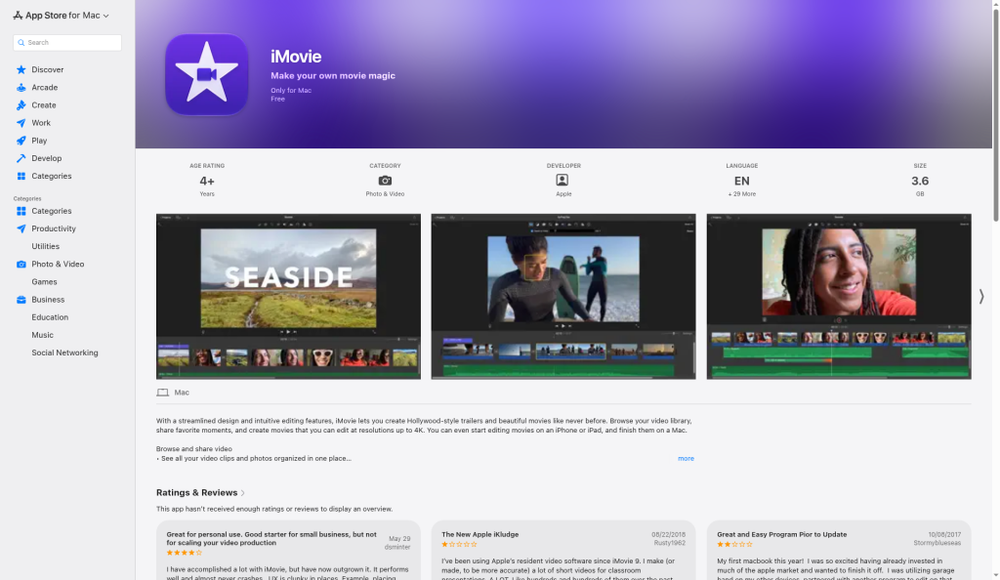
Caption: iMovie — Mac App Store listing with real product UI previews (free; Apple platforms only).
Verdict
If you already own a Mac, iPhone, or iPad, iMovie is still the simplest true zero-cost start. No subscription, no watermark theater, trailer templates that feel like training wheels.
Who it’s for
Family videos, school projects, simple YouTube on Apple hardware.
Free vs paid
Fully free. The upgrade path is Final Cut Pro when you outgrow it—not a freemium watermark trap.
Limits beginners hit
- Apple only — no Windows/Linux.
- Standard Movie projects are effectively 16:9-first; vertical Shorts usually need App Preview workarounds or reframe elsewhere (documented in our free roundup).
- Thin on auto-captions and AI versus CapCut.
Pros
- Preinstalled / App Store free; polished UX
- Up to 4K class editing on supported hardware
- Trailers and Magic Movie / Storyboard paths
Cons
- Ecosystem lock-in
- Awkward for native 9:16 without workarounds
- Easy to outgrow for multicam or advanced color
Who should skip
Windows users (use Clipchamp). Vertical-first creators who refuse CapCut should prefer Clipchamp’s aspect presets.
3. Clipchamp — Best free for Windows beginners
Official: clipchamp.com · Pricing · Windows editor
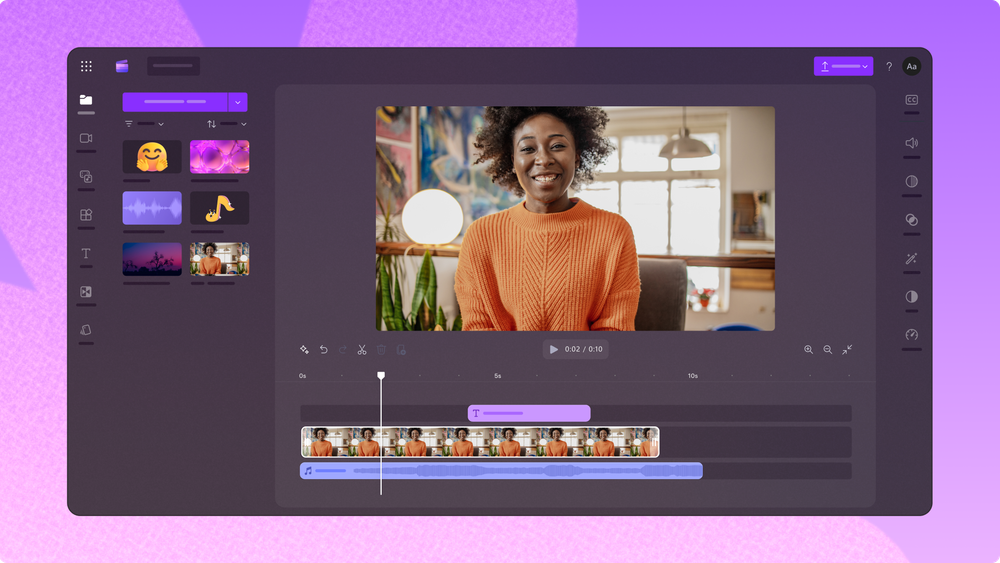
Caption: Clipchamp Windows video editor — official Microsoft product still (free 1080p watermark-free per Clipchamp pricing).
Verdict
Microsoft Clipchamp is the path of least resistance on Windows 10/11: templates, screen recording, AI subtitles, and watermark-free 1080p on the free plan—documented clearly on Clipchamp’s pricing table.
Who it’s for
Windows beginners, teachers, and anyone who wants “good enough YouTube/social” without installing Resolve.
Free vs paid (as of Oct 20, 2026)
- Free: Core editing, many AI tools, watermark-free exports up to 1080p HD, free stock lane.
- Premium / Microsoft 365 Personal & Family: 4K UHD, premium stock, brand kit (per official pricing comparison).
Limits beginners hit
- Free ceiling is 1080p—not free 4K.
- Premium stock or plan-locked assets can block export until removed.
- Browser/WebView habits; offline purists may prefer desktop OSS (see free guide).
Pros
- Honest free watermark policy
- Built into the Windows ecosystem
- Strong for screen recordings and education templates
Cons
- 4K is paid/M365
- Less depth than Resolve/Filmora for complex timelines
Who should skip
Need free 4K masters → Resolve or Apple iMovie. Need viral CapCut-style templates → CapCut.
4. Canva Video — Best for design-first beginners
Official: Canva Video Editor · Pricing
Verdict
If you already build posts and slides in Canva, its video editor is the lowest-friction way to add motion without learning a traditional NLE. Templates and Brand Kit matter more here than frame-accurate trimming.
Who it’s for
Marketers, educators, small businesses who live in Canva.
Free vs paid (as of Oct 20, 2026)
- Free: Drag-and-drop video; export without a watermark when you stick to free elements/footage/music (Canva FAQ).
- Pro: Listed US$120/year for one person on Canva pricing (confirm checkout). Unlocks premium content, more AI, Brand Kits, storage.
- Using Pro/paid elements on a Free account watermarks the design until you license or upgrade (Canva licensing docs).
Limits beginners hit
- Timeline depth is thinner than CapCut/Filmora/Resolve.
- AI credit allotments can run out for heavy Magic Studio use (competitor roundups; confirm in-account).
- Not a substitute for long-form color finishing.
Pros
- Same UI muscle memory as Canva design
- Enormous template + stock surface
- Solid free path if you avoid crown/Pro assets
Cons
- Easy to accidentally watermark with Pro media
- Weak for complex multi-track picture edits
Who should skip
You want a serious desktop NLE first → Filmora, Premiere Elements, or Resolve.
5. Filmora — Best easy paid desktop for beginners
Official: Filmora Video Editor · Buy / plans
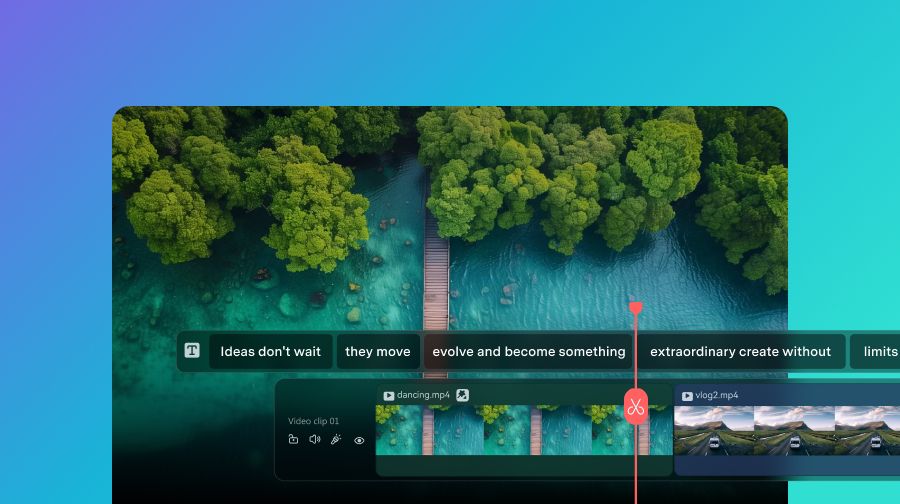
Caption: Filmora — official timeline/editing marketing still (Wondershare CDN). Free edition exports include a watermark per Filmora FAQ.
Verdict
Wondershare Filmora sits between phone apps and Premiere Pro: a clear timeline, effect libraries, and AI helpers marketed explicitly at people who find CapCut too social-first. The catch for beginners: free exports include a Filmora watermark.
Who it’s for
Hobbyists and small creators willing to pay ~$50/year for a watermark-free desktop with effects.
Free vs paid (as of Oct 20, 2026)
- Free / trial: Basic editing available; watermarks on exported files (official FAQ).
- Basic: About US$49.99/yr on the shop page (promotions vary)—includes export without watermark, 4K, creative assets access per plan matrix.
- Advanced: About US$59.99/yr—adds monthly AI credits and more cloud.
- Perpetual: One-time option for Filmora 16 updates only (confirm current SKU).
Limits beginners hit
- Watermarked free tier fails “share to YouTube tonight for $0.”
- After paying, re-export from the original .wfp project—you cannot strip a watermark from an already exported file (Wondershare support).
- Many AI features consume AI credits on Advanced.
Pros
- Gentle desktop learning curve
- Large effects/template libraries
- Clearer “beginner desktop” story than Premiere Pro
Cons
- Free = watermark
- Subscription / perpetual trade-offs to understand before buying
Who should skip
Need $0 clean masters → Clipchamp, iMovie, CapCut free-asset path, or Resolve. Need Hollywood color → Resolve Studio / Premiere Pro later.
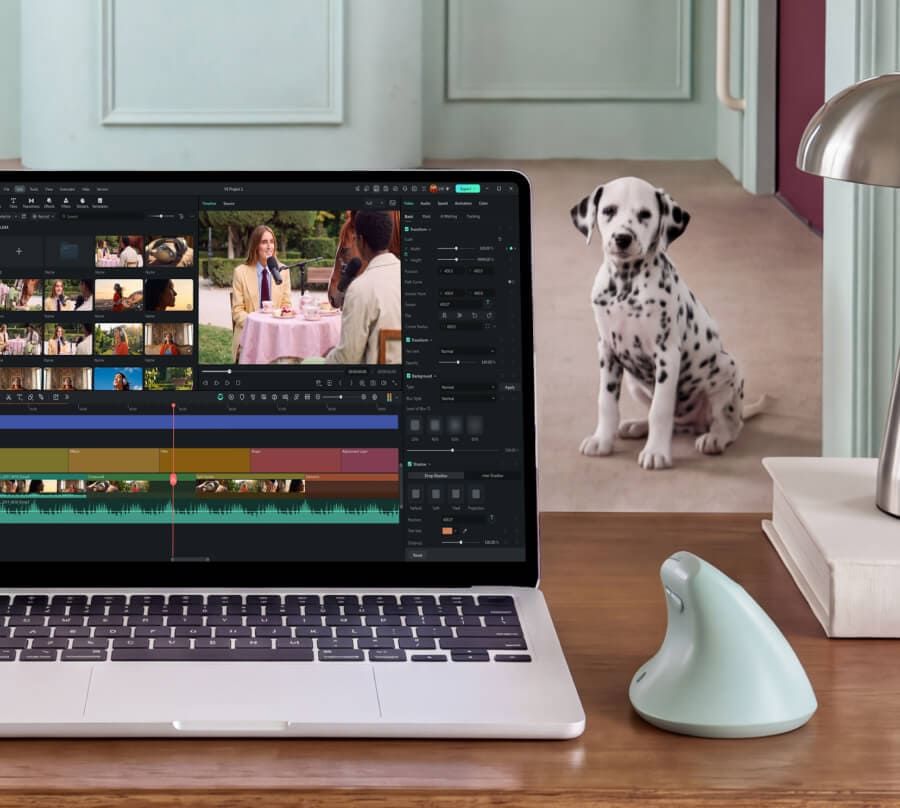
Caption: Filmora desktop workspace — official product photography (Wondershare). Useful for seeing a full beginner desktop layout.
6. Adobe Premiere Elements — Best guided Adobe path
Official: Premiere Elements · FAQ
Verdict
Adobe Premiere Elements (current marketing line 2027) is Adobe’s beginner lane: Quick, Guided, and Advanced modes, plus Organizer. It is not a forever-free editor—expect a short trial, then a 3-year term license.
Who it’s for
Family and hobby editors who want step-by-step Guided Edits and an Adobe-shaped UI without a Premiere Pro subscription.
Free vs paid (as of Oct 20, 2026)
- 7-day full-featured trial; trial exports carry a watermark (Adobe Help / community docs).
- Purchase: 3-year term license, non-renewing; when it expires the editor locks but Organizer media catalog remains accessible (Adobe FAQ).
- US retail listings commonly show about US$99.99 for Premiere Elements 2027 digital (B&H / Best Buy class retailers)—confirm live Adobe or retailer checkout (Adobe page uses dynamic pricing widgets).
Limits beginners hit
- No long-term free publishing tier.
- Generative image/title features use generative credits (25/month on Premiere Elements alone per FAQ).
- Still not Premiere Pro—collaboration and plugin depth differ.
Pros
- Guided Edits teach while you work
- One-time-ish term (not monthly Creative Cloud for this SKU)
- Familiar Adobe family with Photoshop Elements bundle option
Cons
- Trial watermark; must buy to publish clean
- License ends after three years
- Heavier than Clipchamp for casual cuts
Who should skip
Budget $0 forever → iMovie/Clipchamp/Resolve. Need industry collaboration → Premiere Pro later.
7. Descript — Best for talking-head beginners
Official: descript.com · Pricing
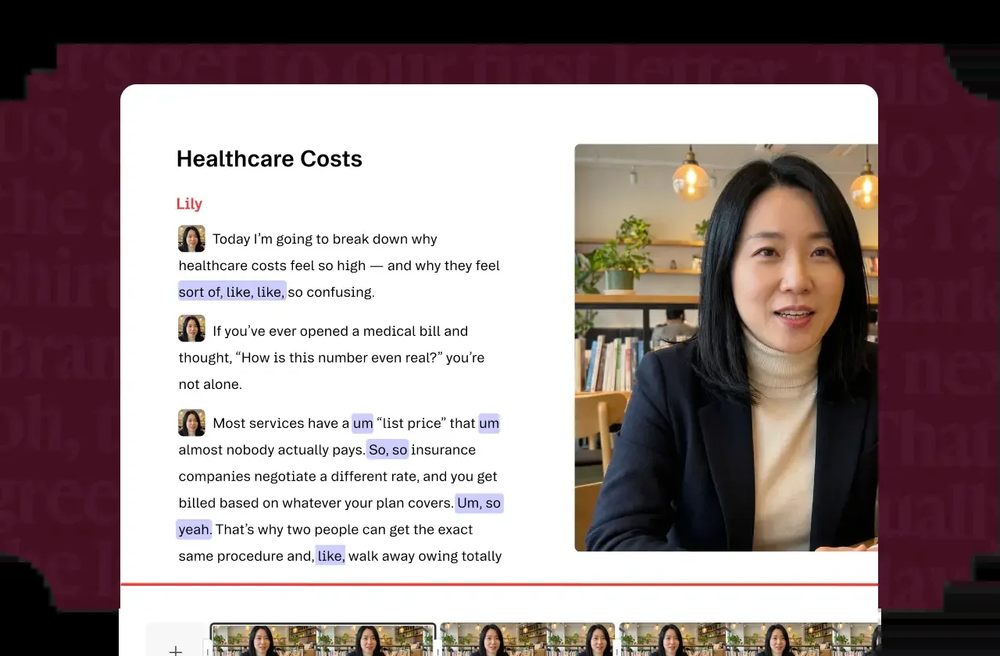
Caption: Descript — official product UI showing transcript editing and filler-word highlights (vendor CDN). Free plan exports are 720p with watermark per Descript Help.
Verdict
Descript replaces “learn a timeline” with “edit a Google Doc.” Delete a sentence; the video cuts. For podcasts, courses, and talking-head YouTube, that is often the real beginner win.
Who it’s for
Creators whose footage is mostly speech.
Free vs paid (as of Oct 20, 2026)
- Free: 60 media minutes/month; local export capped at 720p with a Descript watermark (Help Center).
- Hobbyist: About $16/person/month billed annually on the pricing page (monthly higher)—1080p, watermark-free, more media hours/AI credits.
- Creator / Business: Higher minutes, 4K export, more AI (see pricing matrix).
Limits beginners hit
- Free watermark + 720p + minute cap.
- Weak for music videos, heavy B-roll montage, or cinematic timelines—use CapCut/Filmora/Resolve instead.
Pros
- Lowest timeline anxiety for dialogue
- Filler-word and Studio Sound style AI helpers on paid tiers
- Great for interview cleanup
Cons
- Free tier is a demo for publishing
- Not a visual-effects playground
Who should skip
Silent B-roll storytelling → CapCut or Filmora. Need free clean 1080p masters of speech → record shorter and use Clipchamp/iMovie, or budget Hobbyist.
8. DaVinci Resolve — Best free to grow into (not the easiest)
Official: DaVinci Resolve
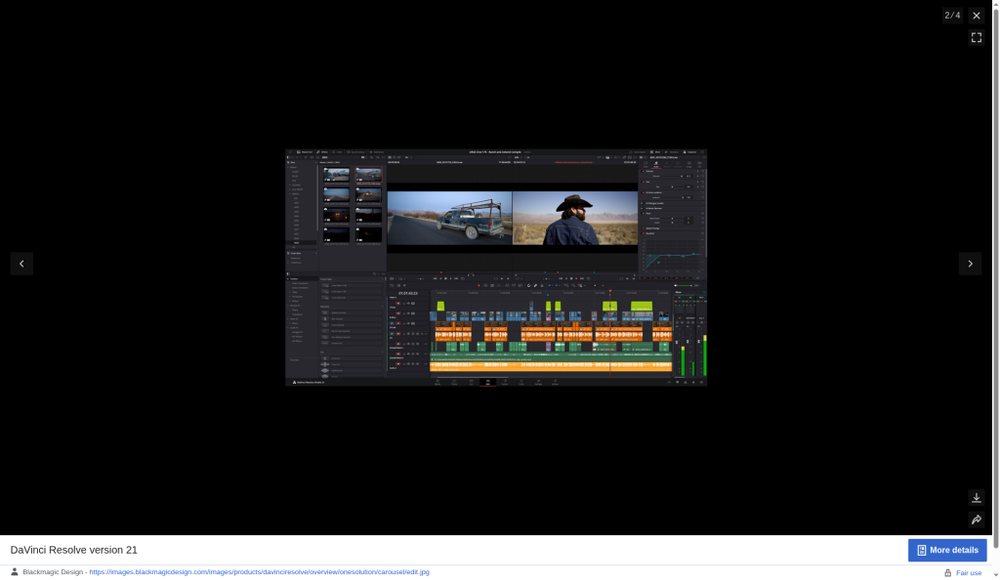
Caption: DaVinci Resolve Edit page — real product UI. Free version exports up to UHD with no watermark per Blackmagic “Two Great Versions.”
Verdict
DaVinci Resolve (free) is the best long-term free editor on this list—and intentionally not our “easiest” pick. Pages for Cut/Edit/Color/Fusion/Fairlight overwhelm day-one beginners. If you will keep editing for years and your PC can handle it, start here; if you need a clip tonight, start with CapCut, iMovie, or Clipchamp.
Who it’s for
Ambitious beginners aiming at YouTube long-form who accept a steep first week.
Free vs paid (as of Oct 20, 2026)
- Free: Virtually all 8-bit formats, up to Ultra HD 3840×2160, ≤60 fps; no watermark; collaboration and HDR grading included per Blackmagic.
- Studio: One-time purchase commonly about US$295—adds DaVinci AI Neural Engine, extra FX, noise reduction, text-based editing, Magic Mask, beyond-4K/10-bit paths, etc. Confirm on Blackmagic’s store.
Limits beginners hit
- Steep UI; hardware hungry (GPU/RAM).
- Almost no CapCut-style viral templates.
- Best AI toys sit in Studio.
Pros
- Genuine free UHD publishing path
- Same family used in pro post
- Skills do not hit a toy-app ceiling
Cons
- Worst day-one comfort on this list
- Overkill for 20-second Reels
Who should skip
Absolute beginners with weak laptops or only vertical social goals—use CapCut/Clipchamp first, then graduate.
Free vs freemium vs paid for beginners
| Model | Examples here | Beginner takeaway |
|---|---|---|
| Truly free / no logo tax | iMovie; Clipchamp free 1080p; Resolve free; CapCut free-asset HD paths | Best first afternoon if you stay inside the free rules |
| Freemium | CapCut, Canva, Descript | Powerful—but watch Pro badges, crowns, and minute caps |
| Trial / watermarked free | Filmora free; Premiere Elements trial; Descript Free watermark | Fine to learn; budget before you publish |
| Paid beginner desktop | Filmora Basic; Premiere Elements term | Pay for guided desktop without Premiere Pro |
Practical rule: If your workflow requires removing a logo to post, it is not a “free beginner” workflow—even if the download button says Free.
For a deeper free-only watermark/4K matrix (including Shotcut, Kdenlive, OpenShot), use our sister guide: Best Free Video Editing Software in 2026.
Which beginner editor should you choose?
- Social vertical this weekend? → CapCut (accept freemium + privacy).
- Mac/iPhone only, $0? → iMovie.
- Windows PC, $0, no watermark? → Clipchamp (1080p).
- Already in Canva daily? → Canva Video (avoid Pro assets on Free).
- Want effects-heavy desktop and will pay ~$50/yr? → Filmora.
- Want Guided Edits / Adobe family? → Premiere Elements.
- Mostly talking head? → Descript (budget Hobbyist to publish clean).
- Ready to learn a real NLE for free? → DaVinci Resolve.
Also considered / not on the main list
| Tool | Why it is not in the main 8 |
|---|---|
| Adobe Premiere Pro / Final Cut Pro | Pro learning curves and pricing; mention as “graduate to,” not day-one |
| Shotcut / Kdenlive / OpenShot | Strong free/OSS—covered in our free video editors guide; thinner templates for absolute beginners |
| VEED | Help docs: free/logged-out exports carry a VEED watermark—poor default for clean beginner publishes |
| Kapwing | Common watermarked free path; collaboration niche |
| Movavi | Overlaps Filmora; free often watermarked/limited |
| PowerDirector | Denser enthusiast UI |
| InShot | Strong mobile niche; not our cross-platform beginner shortlist seat |
| Lightworks Free | Free export around 720p—weak 2026 master path |
| HitFilm | Discontinued product path—do not onboard new beginners |
FAQ
What is the best video editing software for beginners in 2026?
For most US beginners making social or first YouTube clips, CapCut is the strongest overall start (templates + speed). On Apple, start with iMovie; on Windows, start with Clipchamp. Pay for Filmora or Premiere Elements when you want a guided desktop without CapCut’s social-first tradeoffs.
Is CapCut free for beginners?
CapCut has a capable free tier. Pro is listed around USD 19.99 on CapCut’s pricing page (region/account vary). Stick to free-marked assets for cleaner exports; treat 4K/advanced AI as potentially Pro-gated.
Which beginner editors export without a watermark on free?
iMovie, Clipchamp free (≤1080p), DaVinci Resolve free, and CapCut free-asset HD paths generally do. Filmora free, Descript Free, and Premiere Elements trial do not (watermark or trial mark). Canva Free is clean only with free elements.
Do beginners need Adobe Premiere Pro?
No. Premiere Pro is industry-standard and subscription-heavy. Beginners usually get farther faster with CapCut, Clipchamp, iMovie, Filmora, or Premiere Elements—then graduate if client/pro workflows demand it.
CapCut vs iMovie for a first project?
Choose CapCut for vertical social templates and cross-platform. Choose iMovie if you are already on Apple and want zero accounts and zero upsells.
What about open-source editors for beginners?
OpenShot/Shotcut/Kdenlive are excellent free tools—see the best free video editing software 2026 roundup. They are thinner on trendy templates, so they sit outside this beginners main eight.
Related reading
- Best Free Video Editing Software in 2026 — watermark / 4K / truly free vs freemium
- Best Free Drawing Software in 2026 — sister creative free-tools guide
Methodology & update notes
- Author / Publisher: Yang Dan · DirHunt AI (dirhuntai.com)
- Last updated: October 20, 2026 (Asia/Shanghai)
- Keyword / intent: US commercial investigation around best video editing software for beginners
- Primary sources: Official product/pricing/help pages for CapCut, Apple iMovie, Microsoft Clipchamp, Canva, Wondershare Filmora, Adobe Premiere Elements, Descript, Blackmagic DaVinci Resolve; VEED Help (exclusion).
- Secondary sanity: 2026 beginner roundups (e.g. Toolradar, Async) used only for shortlist consensus—not for inventing limits.
- Screenshots: Official vendor marketing / product UI stills under ./publish/beginners-video-2026-10-20/screenshots/ (Clipchamp hero; Filmora; Descript; Resolve; iMovie; CapCut templates). Timed export lab pending.
- Affiliate status: None.
- Next review: Re-check CapCut Pro/Ultra, Clipchamp M365 bundling, Filmora Basic price, Premiere Elements term price, Descript Hobbyist, Resolve Studio price (target ~Jan 2027).
Written for DirHunt AI by Yang Dan. Prefer official downloads and read each vendor’s current license/privacy terms before production use. Hands-on lab limited—docs smoke checks labeled as of Oct 20, 2026 (Asia/Shanghai).